How the Docker Run Command Transforms Container Orchestration

The `docker run` command is the linchpin of containerized workflows, a single instruction that bridges development, testing, and production environments with surgical precision. Without it, modern CI/CD pipelines would stall at the first hurdle—containers, by definition, require initialization, and this command is the ignition switch. Its syntax may appear deceptively simple (`docker run [OPTIONS] IMAGE [COMMAND] [ARG...]`), yet beneath the surface lies a symphony of kernel-level isolation, resource allocation, and process management that redefines how software is deployed.
What separates the `docker run` command from traditional process execution is its ability to instantiate an entire runtime environment—complete with libraries, dependencies, and configurations—instantly and reproducibly. Unlike bare-metal servers or virtual machines, containers share the host OS kernel while maintaining strict boundaries between workloads. This duality of efficiency and isolation is why enterprises from Netflix to Goldman Sachs rely on it daily, often without realizing how deeply it has reshaped their infrastructure.
The command’s versatility extends beyond basic containerization. Advanced users leverage its options to fine-tune security contexts, network stacks, and storage volumes, effectively turning it into a Swiss Army knife for container orchestration. Whether you’re spinning up a lightweight web server, debugging a legacy application, or scaling a microservices cluster, mastering `docker run` is non-negotiable for anyone operating in cloud-native ecosystems.
The Complete Overview of the Docker Run Command
At its core, the `docker run` command is the entry point for container lifecycle management, encapsulating the creation, startup, and execution of Docker containers. Its power lies in its simplicity: a single CLI instruction that abstracts away the complexity of low-level system calls, process namespaces, and cgroups. Unlike traditional virtualization, which emulates entire hardware stacks, Docker containers share the host OS kernel while providing process-level isolation through mechanisms like namespaces and control groups. This design choice delivers near-native performance with minimal overhead, making it ideal for high-density deployments.The command’s flexibility is evident in its extensive option set, which allows users to customize container behavior at runtime. From specifying resource limits (`--memory`, `--cpus`) to defining network interfaces (`--network`), the `docker run` command serves as a control plane for containerized workloads. This adaptability is why it remains the most frequently used Docker CLI command, even as higher-level tools like Kubernetes abstract some of its functionality.
Historical Background and Evolution
The origins of the `docker run` command trace back to Docker’s 2013 debut, when it revolutionized containerization by packaging the Linux Control Groups (cgroups) and namespaces—previously niche kernel features—into an accessible, user-friendly interface. Before Docker, managing containers required manual configuration of these low-level Linux primitives, a process accessible only to system administrators with deep kernel expertise. Docker democratized containerization, and the `docker run` command became its public face, embodying the project’s philosophy of "build once, run anywhere."Over time, the command evolved alongside Docker’s feature set. Early versions lacked options for GPU passthrough or multi-stage builds, but as use cases expanded—from monolithic applications to distributed microservices—the `docker run` command absorbed new capabilities. Today, it supports features like read-only filesystems (`--read-only`), user namespace remapping (`--userns`), and even interactive terminal sessions (`-it`), reflecting Docker’s maturation from a niche tool to an industry standard.
Core Mechanisms: How It Works
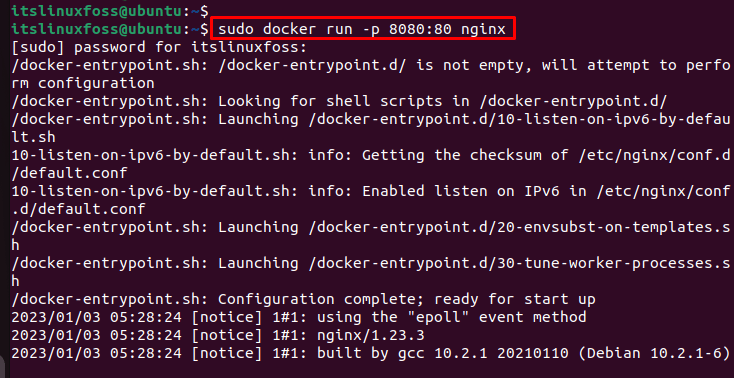
Under the hood, executing `docker run` triggers a multi-step process that begins with image resolution. Docker’s daemon (`dockerd`) locates the specified image in the local storage or pulls it from a registry if absent. Once the image is available, the daemon creates a writable container layer, initializes the container’s filesystem, and sets up the necessary namespaces (PID, network, mount, etc.) to isolate the container’s processes from the host and other containers.Table of Contents
- The Complete Overview of the Docker Run Command
- Historical Background and Evolution
- Core Mechanisms: How It Works
- Key Benefits and Crucial Impact
- Major Advantages
- Comparative Analysis
- Future Trends and Innovations
- Conclusion
- Comprehensive FAQs
- Q: What happens if I omit the command in `docker run`?
- Q: Can I run multiple containers with the same `docker run` command?
- Q: How do I persist data across container restarts?
- Q: What’s the difference between `docker run -d` and `docker run -it`?
- Q: Why does my container exit immediately after starting?
- Q: How can I limit a container’s CPU usage?
- Q: Is there a way to run a container with elevated privileges?
- Q: Can I run Docker containers on non-Linux systems?
- Q: How do I debug a container that crashes on startup?
Resource allocation is governed by cgroups, which enforce limits on CPU, memory, and I/O usage. The command’s options—such as `--memory=512m`—directly translate to cgroup rules, ensuring predictable performance even in resource-constrained environments. Networking is handled via Docker’s bridge, host, or custom networks, with the container receiving an IP address and DNS configuration dynamically. Finally, the specified command (or the image’s default `CMD`) is executed within the container’s isolated environment, with output streamed back to the user’s terminal.
Key Benefits and Crucial Impact
The `docker run` command’s impact on modern software development is immeasurable, acting as a catalyst for agility, consistency, and scalability. By encapsulating applications and their dependencies into portable, self-contained units, it eliminates the "works on my machine" problem, ensuring that development, testing, and production environments remain synchronized. This reproducibility is particularly critical in DevOps workflows, where consistency across stages is non-negotiable.Beyond operational efficiency, the command enables organizations to optimize resource utilization. Containers share the host OS kernel, reducing the overhead associated with full virtualization while still providing strong isolation. This efficiency translates to lower cloud costs, faster deployment cycles, and the ability to run more workloads on the same hardware. The command’s role in enabling these benefits cannot be overstated—it is the operational backbone of containerized infrastructure.
"Docker didn’t just change how we package software; it changed how we think about infrastructure. The `docker run` command is the linchpin—simple to use, yet powerful enough to underpin global-scale systems."
— Solomon Hykes, Docker Co-Founder
Major Advantages
- Instant Reproducibility: Containers created via `docker run` are identical across environments, eliminating configuration drift and "it works here" issues.
- Resource Efficiency: Shared kernel architecture reduces overhead compared to VMs, allowing higher container density on the same hardware.
- Security Isolation: Namespaces and cgroups provide strong process-level isolation, reducing attack surfaces while maintaining performance.
- Portability: Containers can run on any Docker-compatible host, from local laptops to cloud providers, without modification.
- Integration with Orchestration Tools: The command’s output is compatible with Kubernetes, Docker Swarm, and other tools, making it a foundational building block for modern infrastructure.
Comparative Analysis
| Feature | Docker Run Command | Traditional VMs |
|---|---|---|
| Isolation Level | Process-level (namespaces/cgroups) | Hardware-level (full OS virtualization) |
| Startup Time | Seconds (shared kernel) | Minutes (booting OS) |
| Resource Overhead | Low (shared kernel, minimal layers) | High (full OS duplication) |
| Portability | High (container images are OS-agnostic) | Low (dependent on hypervisor) |
Future Trends and Innovations
The `docker run` command is poised to evolve alongside broader trends in containerization and cloud-native computing. One emerging area is the integration of WebAssembly (Wasm) runtimes, which could allow containers to execute Wasm modules directly, further blurring the line between containers and serverless functions. Additionally, advancements in GPU and FPGA acceleration within containers will expand the command’s utility for AI/ML workloads, where specialized hardware is often required.Another frontier is the convergence of container and VM technologies. Tools like Firecracker (AWS) and Kata Containers demonstrate how lightweight VMs can provide stronger isolation than pure containers while retaining performance benefits. Future iterations of `docker run` may incorporate these hybrid approaches, offering users granular control over isolation levels based on security requirements.
Conclusion
The `docker run` command is more than a utility—it is the cornerstone of a paradigm shift in how software is built, deployed, and managed. Its ability to encapsulate entire environments in a single instruction has democratized containerization, making it accessible to developers, sysadmins, and DevOps engineers alike. As containerization continues to evolve, the command’s role will only grow, adapting to new workloads, security models, and performance demands.For practitioners, understanding its mechanics and capabilities is essential. Whether you’re debugging a local development environment or orchestrating a global cluster, the `docker run` command remains the most direct path to containerized efficiency. Its legacy is already written in the success stories of companies that have adopted it—now, the future lies in how it will continue to redefine infrastructure.
Comprehensive FAQs
Q: What happens if I omit the command in `docker run`?
The container will execute the default `CMD` specified in the Dockerfile. If neither is defined, the container starts but immediately exits with status code 0, as there’s no process to keep it running.
Q: Can I run multiple containers with the same `docker run` command?
No. Each `docker run` spawns a single container. To run multiple instances of the same image, you must execute the command separately for each container or use Docker Compose for orchestration.
Q: How do I persist data across container restarts?
Use the `--volume` or `-v` flag to bind-mount a host directory into the container. Data written to the mounted path will persist even if the container is removed. For named volumes, use `docker volume create` followed by `--mount source=volume_name`.
Q: What’s the difference between `docker run -d` and `docker run -it`?
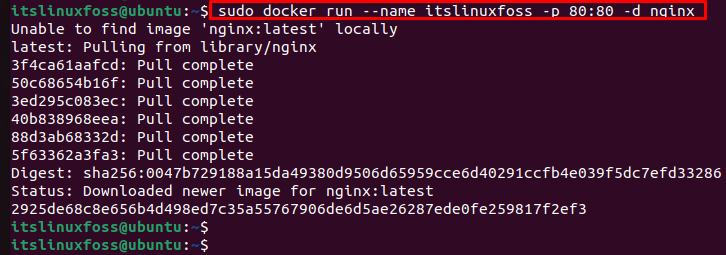
`-d` (detach) runs the container in the background, detaching the terminal. `-it` allocates an interactive terminal (`-i`) and keeps STDIN open (`-t`), making it ideal for CLI-based applications like shells or databases.
Q: Why does my container exit immediately after starting?
This typically occurs when the main process in the container completes execution. To keep the container running, override the `CMD` with a long-running process (e.g., `docker run -d nginx`) or use a shell loop (e.g., `tail -f /dev/null`).
Q: How can I limit a container’s CPU usage?
Use the `--cpus` or `--cpuset-cpus` flags to restrict CPU allocation. For example, `--cpus=0.5` limits the container to half a CPU core, while `--cpuset-cpus="0-1"` pins it to specific cores.
Q: Is there a way to run a container with elevated privileges?
Yes, but with caution. Use `--privileged` to give the container access to all device files and kernel features, or specify individual capabilities with `--cap-add`. Privileged containers should only be used in trusted environments.
Q: Can I run Docker containers on non-Linux systems?
Officially, Docker Desktop provides support for macOS and Windows by running a lightweight Linux VM in the background. However, the `docker run` command itself executes within this VM, so performance may vary compared to native Linux deployments.
Q: How do I debug a container that crashes on startup?
Use `docker run --entrypoint /bin/sh` to drop into an interactive shell, then manually run the failing command. Alternatively, inspect logs with `docker logs
Leave a Comment
Comments are moderated before appearing. The data you submit is processed according to the Privacy Policy of Surfchex.